Mitra: Every Setting on My AC, One Tap Away
Why I built Mitra for MirAIe, a free, open-source alternative to the MirAIe app for the Mac menu bar and Android: every mode, fan speed and air direction of a Panasonic AC at once, the air drawn as it flows, plus timers and sleep profiles.
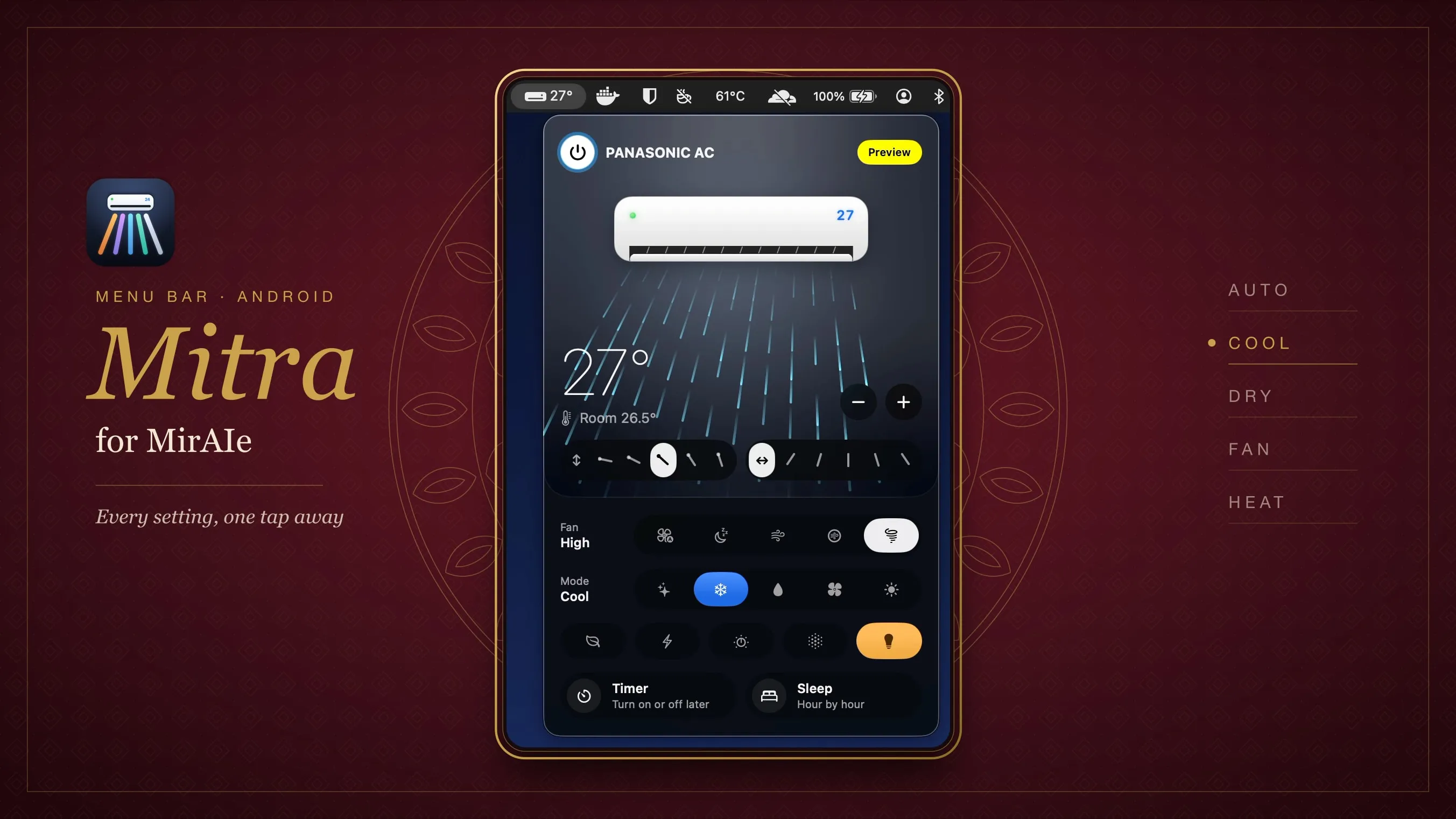
My Panasonic AC is a perfectly good machine with a slightly maddening remote. Want Dry mode? Press the mode button. Auto. Press again. Cool. Again. Dry, finally. Fan speed works the same way, and so does the air direction. The MirAIe app on my phone copies the remote faithfully, which is exactly the problem: the mode is a single button you tap over and over, stepping through every option until you land on the one you wanted.
So I built Mitra for MirAIe, a free, open-source alternative to the MirAIe app. Mitra means friend, and that’s the job: a small app that sits in my Mac’s menu bar and on my Android phone and puts every setting in front of me at once. Any mode, any fan speed, any louver position, one click or tap away.
Mitra in action: one click per setting, and the air follows.
Mitra has its own home now, at mitra.midoreigh.com, with downloads for both platforms.
Lay it all out
The idea is simple: instead of a button that cycles, show the whole list. Auto, Cool, Dry and Fan (and Heat, on units that have it) sit side by side. Fan speed is Auto, Quiet, Low, Medium and High, named exactly as the MirAIe app names them. Both louvers get swing plus five fixed positions each. Temperature runs 16 to 30 °C with a plain minus and plus, and the room temperature the AC measures sits beside it.
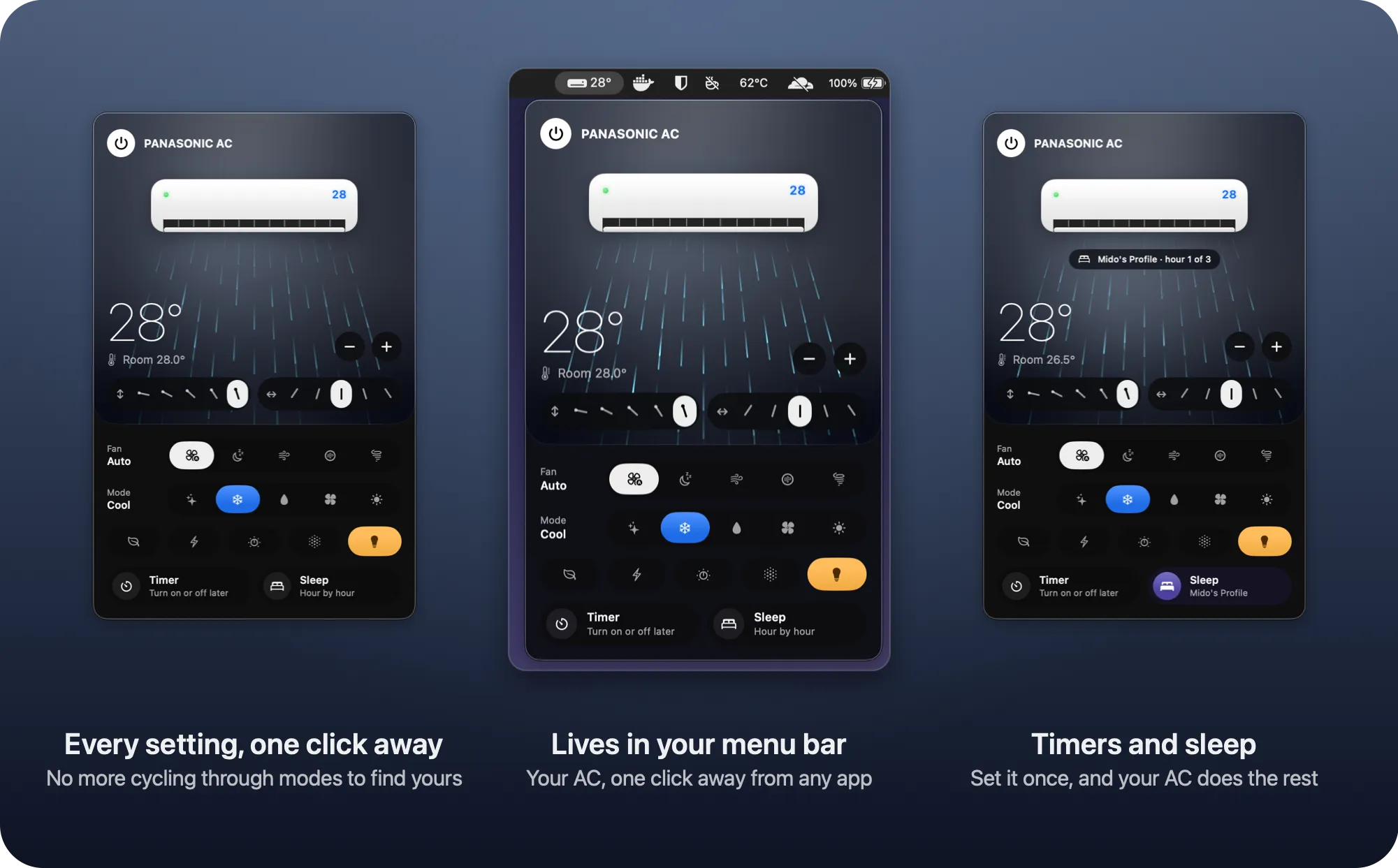
The Mac panel: every mode, fan speed and louver position laid out at once, with Timer and Sleep underneath.
Then there are the extras the remote hides behind long-presses: Eco, Powerful, the Converti7 cooling levels, nanoe X, and the display light, whose button glows a warm, incandescent amber when it’s on, like a lit bulb.
Mitra only shows what your unit actually has. Heat and nanoe X appear when the AC reports them, and you can switch individual features on or off for each AC in Settings, so the panel never offers a button that does nothing.
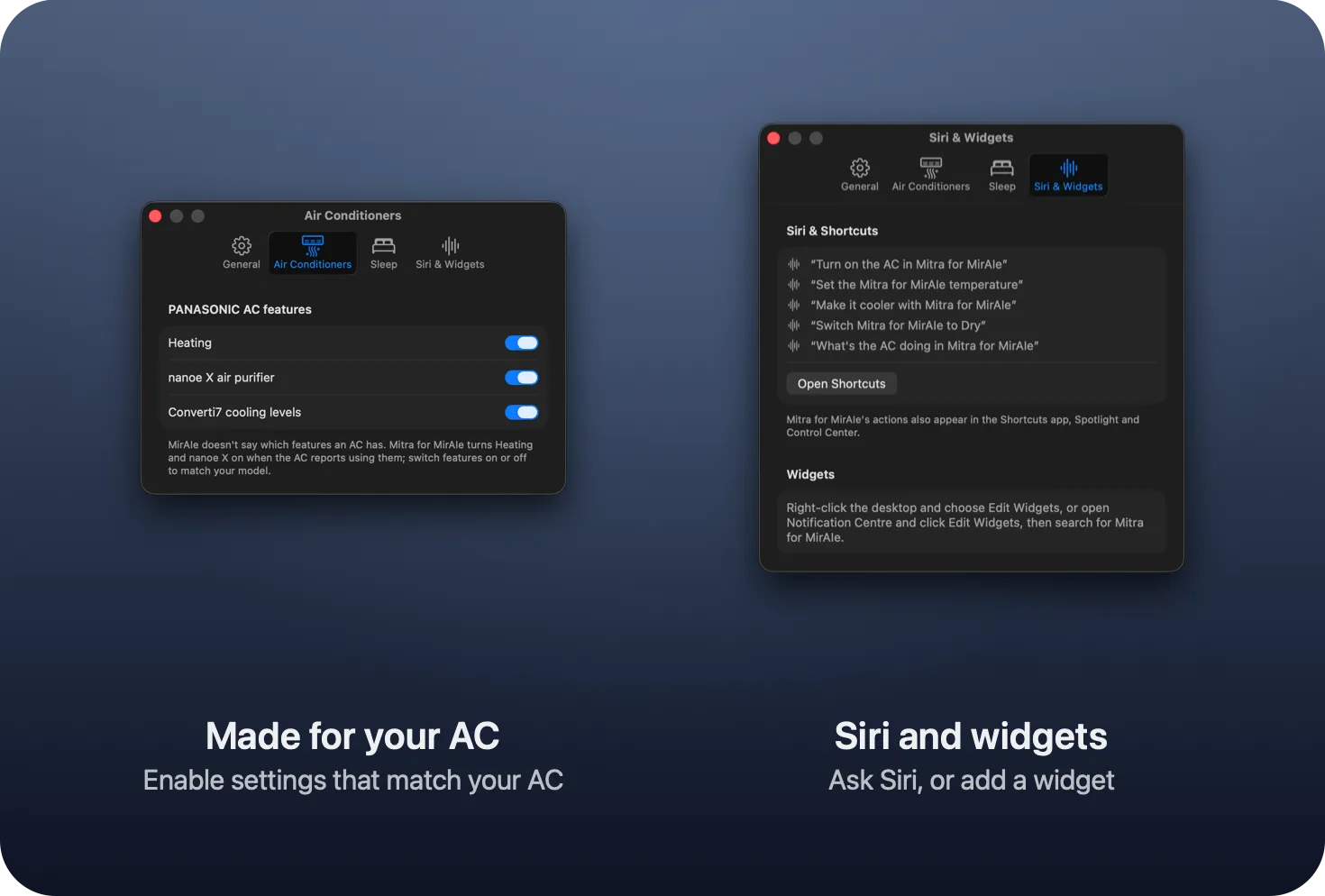
Settings, in tabs: pick the features your unit really has.
Draw the air
The part I enjoyed most is the drawing. Mitra renders your unit and the air coming out of it the way it really behaves. The flap tilts to the louver position you picked. On swing, the air sweeps up and down and side to side at the unit’s own pace. It takes on the colour of the mode, drifts lazily on Quiet and rushes on High. Switch mode or speed and the change starts at the outlet: new air comes out in the new colour while the old air carries on across the room.
Power gets the same care. Turn the AC on and the drawn unit wakes the way the real one does: the flap swings open, the fan spins up and the air gathers from the outlet while the display glows on. Turn it off and the air slows and fades before the flap closes. A small light on the unit tells you whether the AC is online; if it can’t be reached, or has lost power altogether, the whole panel goes idle, shows its red light, and says what to check.
It turns a control panel into something closer to a window: a glance tells you what the AC is doing, not just what you last asked it to do.
Timers and sleep
One-tap control is why Mitra exists, but the feature I lean on most at night is one you won’t find in other apps for these ACs: timers and sleep profiles.
Click Timer to have the AC turn off or on at a set time, or pick 30 minutes to 4 hours from now. Sleep runs a profile with a temperature for each hour of the night, and can turn the AC off at the end. Gentle, the AC’s own profile, is always there: your temperature for three hours, then a degree warmer, then two. You can draw your own in Settings by dragging a bar for each hour.
The AC keeps its timers and profiles itself, so they carry on while your Mac sleeps or your phone is off. Whatever is coming shows under the drawn unit, such as “Off at 9:20 PM” or “Night · hour 2 of 4”.
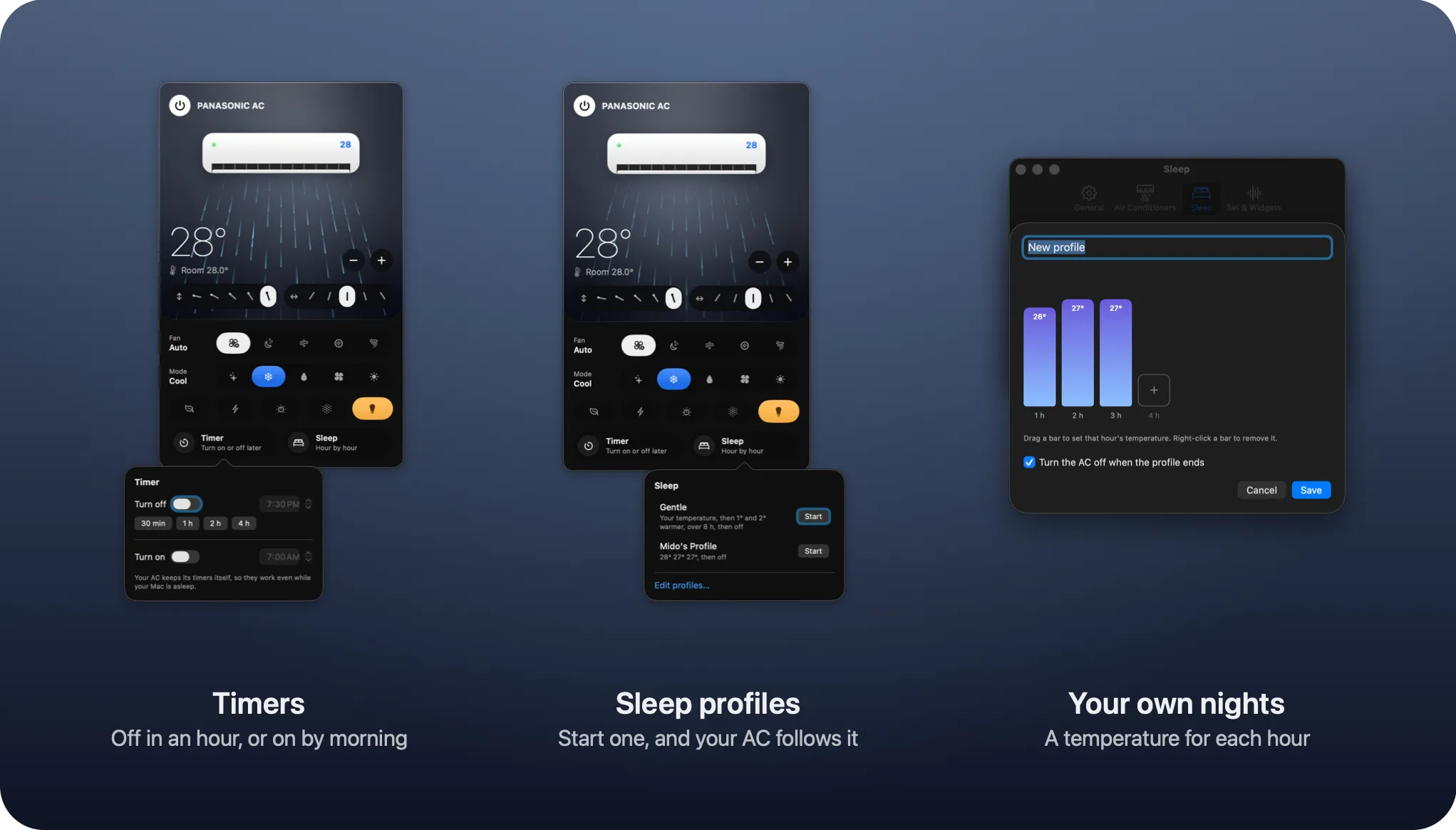
Timers, sleep profiles, and a temperature for each hour of your own nights.
Always within reach
If you’ve looked for a way to control a MirAIe AC from your Mac, this is it. The set temperature sits right next to the menu bar icon. One click opens the panel. Siri works too (“Turn on the AC in Mitra for MirAIe”) and every action is available in Shortcuts, so the AC can switch itself on before I get home.
On Android the AC fills the screen, with every control on a glass panel at the bottom, within thumb reach. Timers and sleep profiles work just as they do on the Mac, and Converti7’s cooling levels open in a glass strip right above their button.
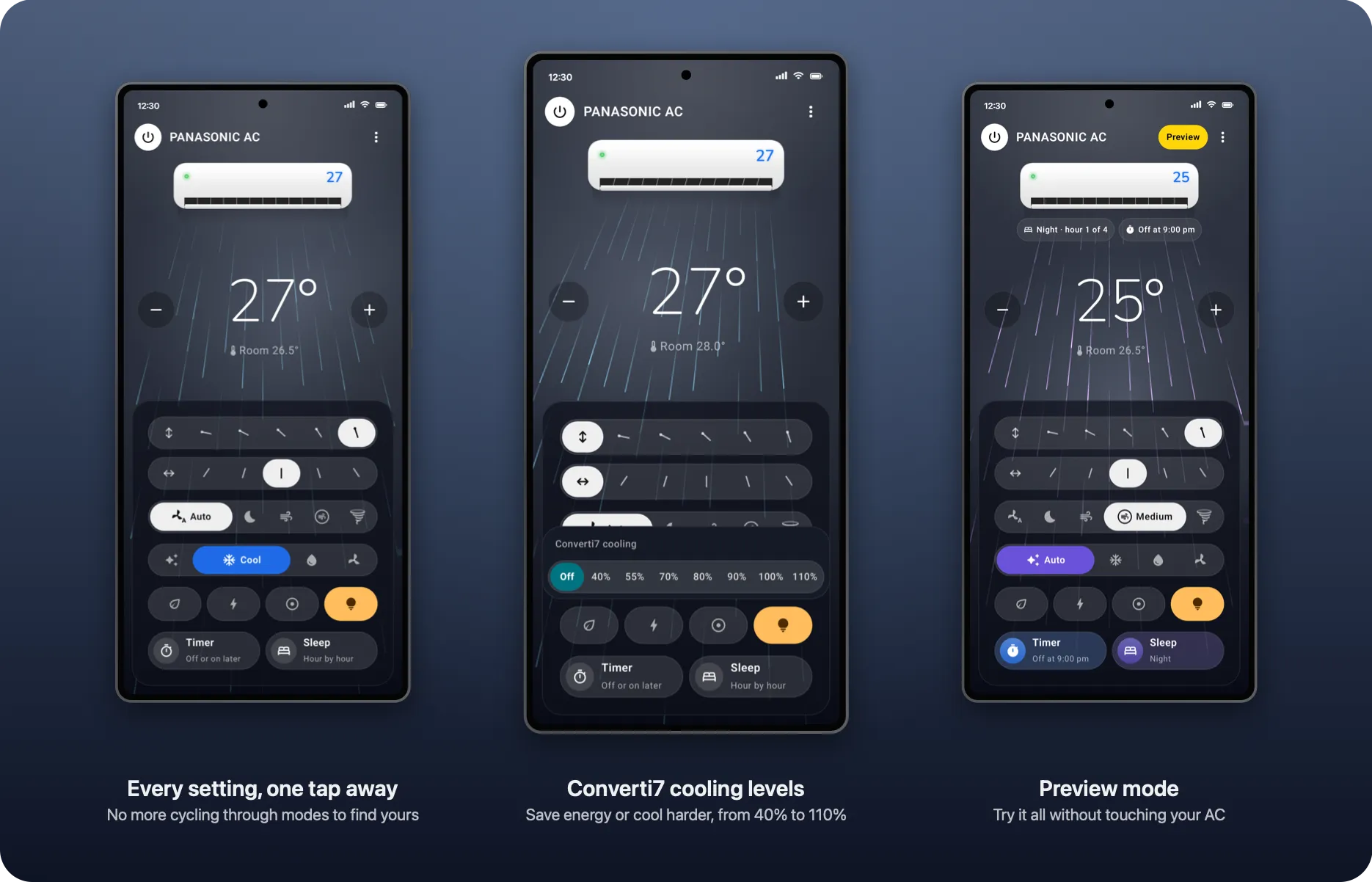
On Android, the same living AC with the controls under your thumb.
Most days I don’t open the app at all. There’s a home-screen widget with power and temperature, a Quick Settings tile for power, and AC on, AC off, Cooler and Warmer when you long-press the app icon.
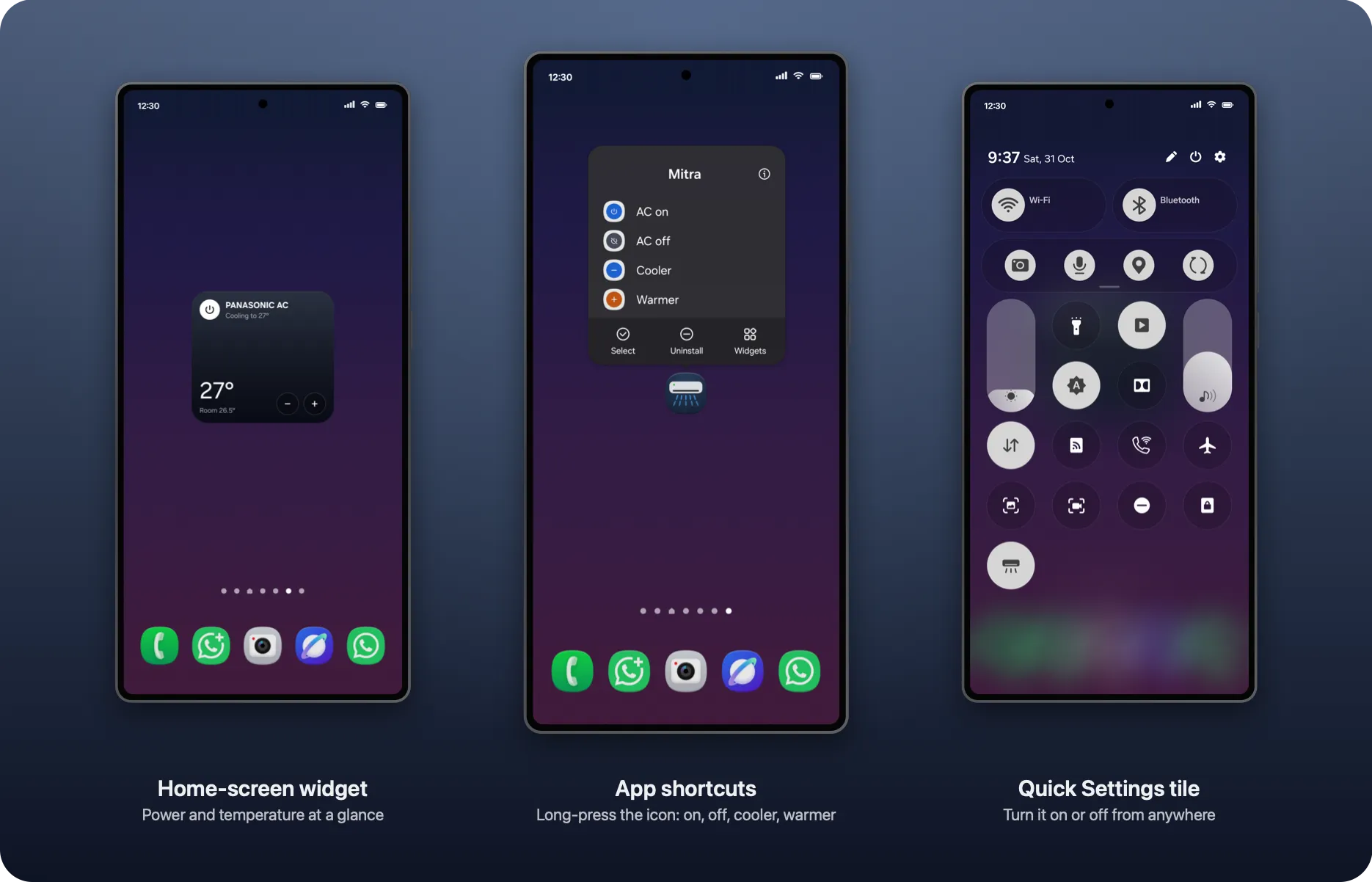
The widget, the app shortcuts and the Quick Settings tile.
And it stays honest. Change something with the remote or the MirAIe app and Mitra follows straight away. Commands update the panel instantly, and the AC’s own status reports confirm them a second or two later.
A new icon
Mitra also has a new icon: the drawn AC with its air in every mode’s colour, Heat orange, Auto violet, Cool blue, Dry teal and Fan silver. It’s the same idea as the app, every option at once, in a single picture.
How it talks to the AC
MirAIe has no public API. Mitra does what the official app does: it signs in to your MirAIe account over REST, then sends commands and receives live status over MQTT. The Mac app is SwiftUI with a shared Swift package for the MirAIe client and the animated unit; the Android app is native Kotlin.
Your password never goes anywhere it shouldn’t. On the Mac it lives in the Keychain; on Android it’s encrypted with the Android Keystore. It’s only ever sent to MirAIe’s own servers. There are no analytics. Apart from MirAIe, the Mac app talks only to GitHub, to check for updates (you can turn that off), and the Android app talks to nothing else at all.
If you’d rather look around before handing over a login, choose Try it without an account for a demo AC, or switch on Preview Mode to try the controls without sending anything to your real unit.
Free, open, and a little unsigned
Mitra is free and MIT-licensed, and the whole source is on GitHub. That freedom has one visible cost: the Mac app isn’t signed with a paid Apple Developer ID. macOS will ask you to click Open Anyway in Privacy & Security when you first open it, and after each update it asks for your password once or twice before the new version can read the sign-in the old one saved in the Keychain. Choose Always Allow and it stays quiet until the next update. On Android, since it isn’t on Google Play, you’ll allow your browser to install the APK. Both prompts are expected; the code is there for anyone to read.
Get it
- Website: mitra.midoreigh.com, the tour and downloads in one place.
- Mac: Mitra for Mac 1.5.1, for macOS 26 or later on Apple silicon or Intel. It checks for updates itself.
- Android: Mitra for Android 1.0.2, for Android 8.0 or later.
- Source, install guide and FAQ: github.com/midoreigh/mitra-for-miraie.
It works with Panasonic ACs you control through the MirAIe app. Mitra is an independent, unofficial project, not affiliated with or endorsed by Panasonic; MirAIe is Panasonic’s trademark. If you try it, I’d love to hear what you think.